How to Clear Cache on iPhone: Safari, Chrome, Firefox and Apps
If your iPhone is running low on storage or a website refuses to load properly, clearing cached data can help. The process depends on where the data is stored: Safari has its own website settings, Chrome and Firefox manage browsing data inside their apps, and other applications may offer separate cache controls.
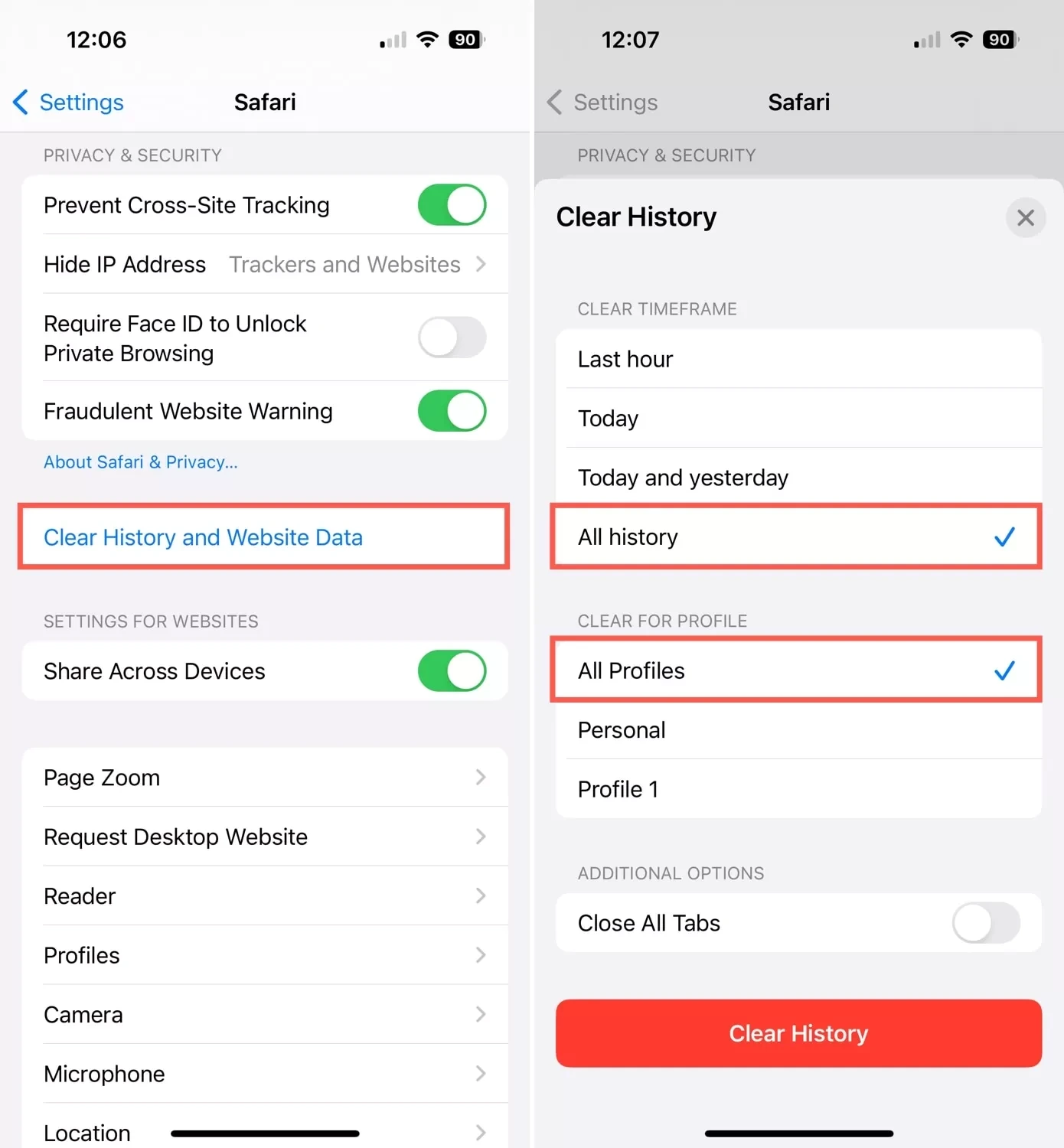
To clear cache on iPhone, open Settings > Apps > Safari > Clear History and Website Data. This removes Safari’s stored browsing information, including cached website content and cookies. If you want to keep your browsing history, there is a separate option under Safari’s advanced settings.
Before deleting anything, it helps to understand the difference between cache, cookies and app data. Choosing the correct option can fix a problem while preserving information you still need.
What Happens When You Clear Cache on iPhone?
A cache is temporary information stored by an application or browser. When you visit a website, your browser may save images, text and other page resources so it can load them more efficiently during future visits.
Over time, cached files can occupy storage or become outdated. A website might continue displaying an old version of a page, load incorrectly or behave unexpectedly.
Clearing its cache forces the browser to retrieve fresh resources.
However, cache and cookies serve different purposes. Cookies can remember website preferences and login sessions, while browsing history records pages you have visited.
Here is what the different options typically affect:
| Data type | What happens when deleted |
| Browser cache | Stored website resources are removed and downloaded again when needed. |
| Cookies | Websites may sign you out and reset preferences. |
| Browsing history | Records of visited pages are removed from the selected browser. |
| App data | Depending on the app, downloads, settings or locally stored information may be affected. |
Clearing cache is useful for troubleshooting, but it is not a guaranteed performance upgrade. Your iPhone automatically manages many temporary files, and websites may initially load more slowly while rebuilding their cache.
How to Clear Safari Cache on iPhone
Safari is Apple’s built-in browser, and its browsing data can be managed directly through iPhone Settings.
The following instructions apply to the Settings layout used in recent iOS versions as of September 2026. Older versions may place Safari directly in the main Settings menu.
Clear Safari history, cache and cookies

Step 1: Open Settings
Launch the Settings app on your iPhone.

Step 2: Find Safari
Scroll down, select Apps, then tap Safari.
Step 3: Choose Clear History and Website Data
Scroll through Safari’s settings and select the option to remove browsing information.
Step 4: Confirm your selection
Choose the timeframe you want to clear, then tap Clear History.
Safari removes the selected browsing history and associated website information. This does not delete saved AutoFill information.
If the clearing option appears greyed out, there may be no data to remove, or web content restrictions in Screen Time may be preventing the action.
Clear Safari cache without deleting history
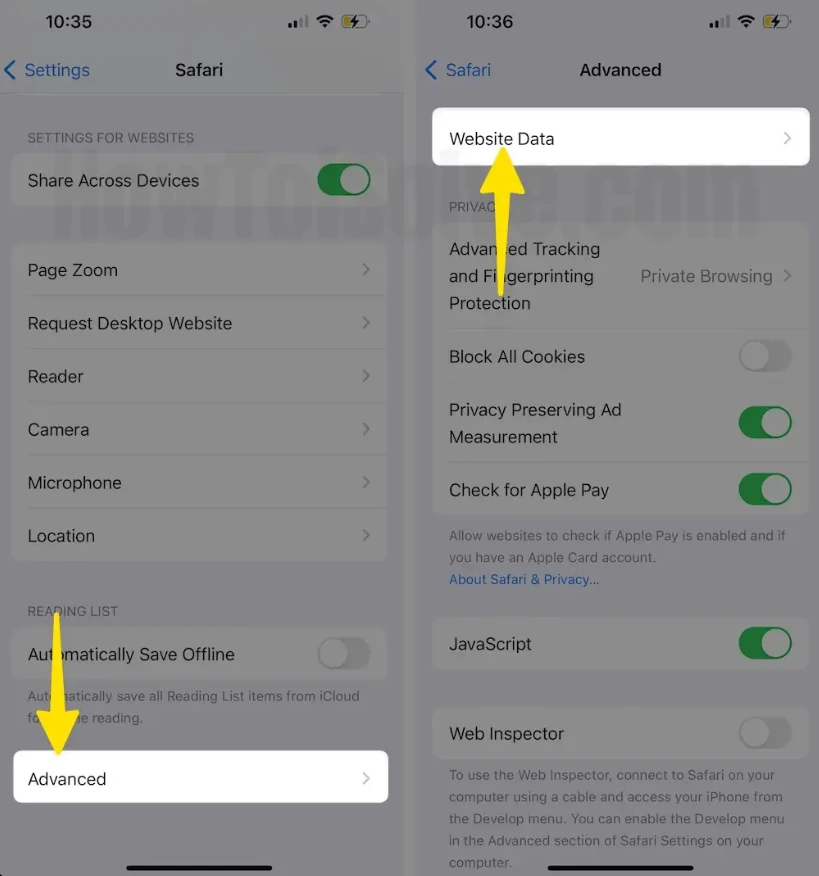
You can remove cookies and stored website data while preserving your browsing history.
Follow this path:
Settings > Apps > Safari > Advanced > Website Data > Remove All Website Data
Confirm the action when prompted.
This option is useful when a website behaves incorrectly but you want to retain your list of previously visited pages.
Be aware that removing cookies may sign you out of websites. Your browser will also need to download fresh resources when you revisit them.
If you only need to troubleshoot one website, Safari’s Website Data screen may offer an option to remove that site’s stored information rather than clearing everything.
How to Clear Cache in Chrome on iPhone
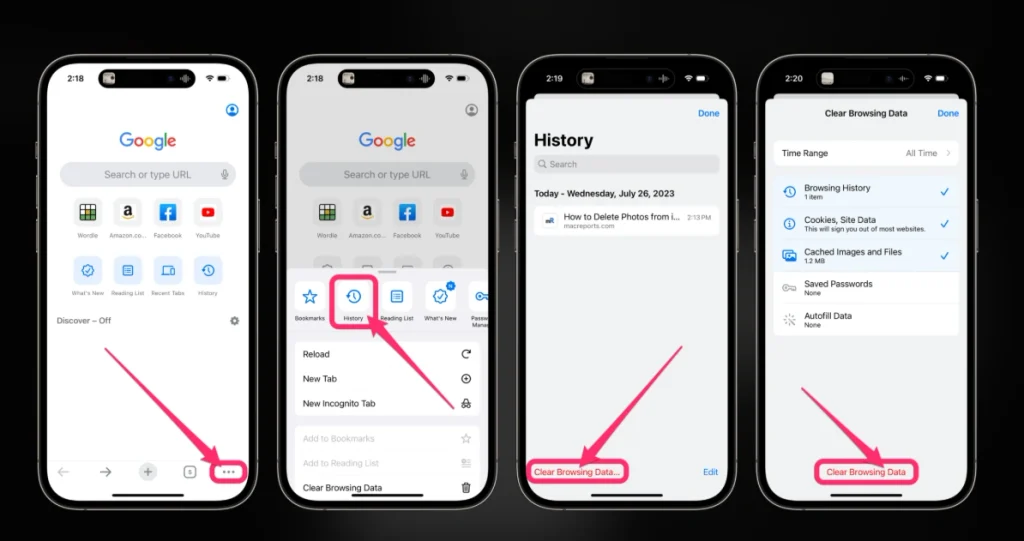
Google Chrome manages its browsing data independently of Safari. Clearing Safari’s cache will not remove information stored in Chrome.
Chrome also allows you to choose which types of data to delete, making it possible to remove temporary files while preserving other browsing information.
Follow these steps:
- Open the Chrome app on your iPhone.
- Tap the three-dot More menu.
- Select Delete Browsing Data.
- Tap Time Range and choose the period you want to clear.
- Open Browsing Data to select the information you want removed.
- Select Cached Images and Files, then confirm your selection.
- Tap Delete Browsing Data.
If you only want to clear cached files, leave unrelated categories unchecked.
Chrome’s default timeframe may be set to the last 15 minutes. Select All Time when you want to remove cached content accumulated over a longer period.
Deleting cookies and site data can sign you out of websites, while removing browsing history may affect synced information associated with your Google Account.
Saved passwords are managed separately through Google Password Manager, so check your selected options rather than assuming every type of browsing information will be removed.
Practical tip: If only one website is malfunctioning, first try opening it in an Incognito tab. If it works there, stored browsing data or an existing session may be contributing to the problem.
How to Clear Cache in Firefox on iPhone
Mozilla Firefox provides a Data Management section where you can control stored website information.
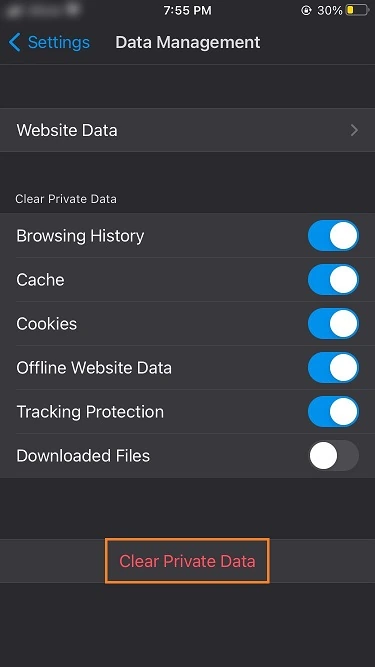
The interface differs from Chrome, but the underlying purpose is similar: remove temporary website resources, cookies or other browsing data.
To clear Firefox’s stored information:
- Open Firefox on your iPhone.
- Tap the menu button near the bottom of the screen.
- Select Settings.
- Navigate to the Privacy section.
- Open Data Management.
- Review the available data categories.
- Select Cache and any additional categories you want to remove.
- Tap Clear Private Data and confirm.
Deleting all private data cannot be undone, so review the selected categories before proceeding.
Firefox also lets you remove information associated with individual websites.
Navigate to Settings > Data Management > Website Data, select the relevant website and choose Clear Items.
This targeted approach is useful when a single website has loading problems and you would prefer to preserve information associated with other sites.
Menu labels and available categories may differ slightly between Firefox versions.
How to Clear App Cache on iPhone
Browser cache is relatively easy to manage because Safari, Chrome and Firefox provide dedicated controls. Other applications handle temporary data differently.
Unlike some Android devices, iOS does not provide a universal Clear Cache button that works across every installed application.
Some apps include their own storage-management options. Others require you to remove downloaded content, offload the application or delete and reinstall it.
Check an app’s storage usage
Open:
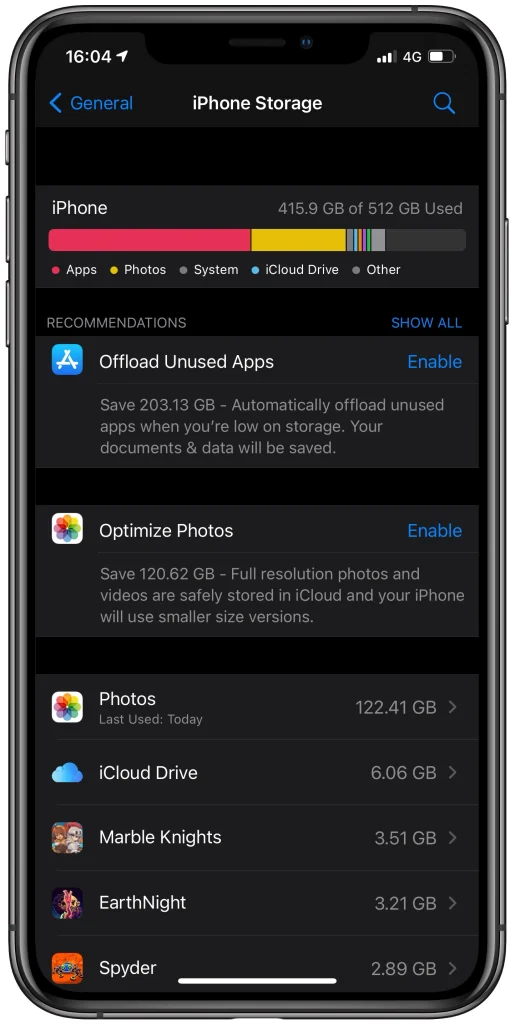
Settings > General > iPhone Storage
Wait for your iPhone to calculate storage usage, then select an application.
You can see how much space it occupies and review the available management options.
Pay attention to the difference between App Size and Documents & Data. A large Documents & Data figure may contain downloaded media, saved files, account information and other content that you should preserve.
Offload or delete an app?
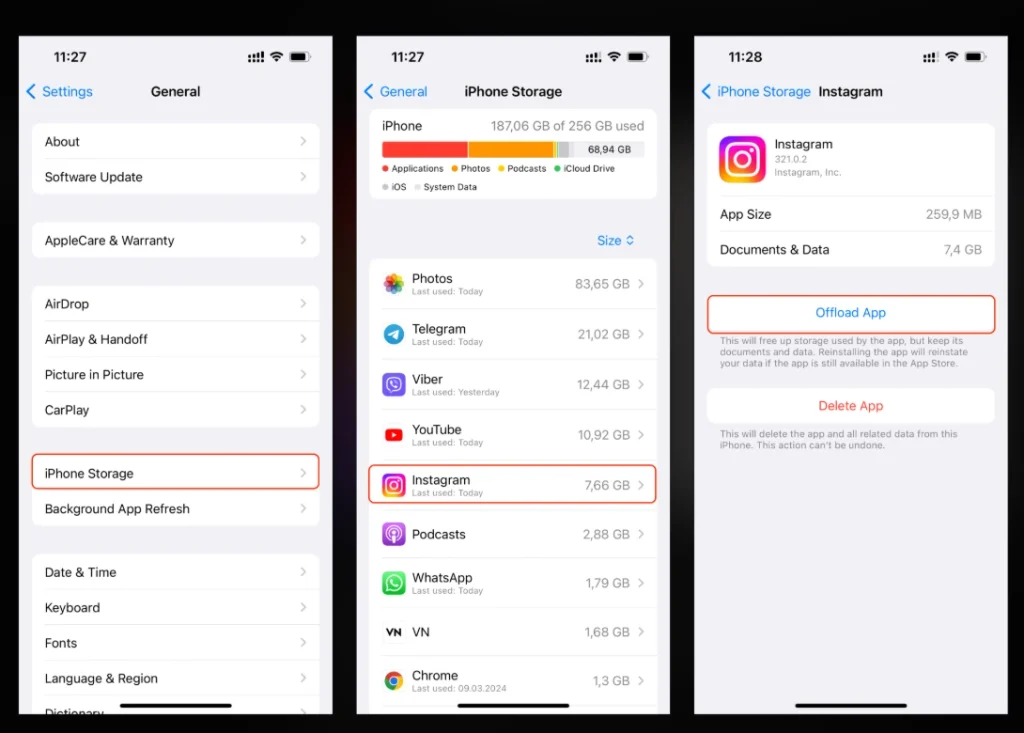
These actions have different consequences.
Offload App removes the application itself while retaining its documents and data. Reinstalling it can restore access to that retained information.
Delete App removes the application and its related local data.
Offloading can free storage occupied by the application, but it is not a reliable method for clearing every cached file because documents and data remain.
Deleting and reinstalling an app may remove accumulated local information, but it can also erase offline downloads, settings and other important files.
Before deleting an application, check whether its data is backed up or synchronised with an account.
For messaging applications, photo editors and other apps containing valuable local content, use their built-in storage tools whenever possible.
Will Clearing Cache Make Your iPhone Faster?
Clearing cached information can help when a browser displays outdated content, a website repeatedly fails to load or storage is running critically low.
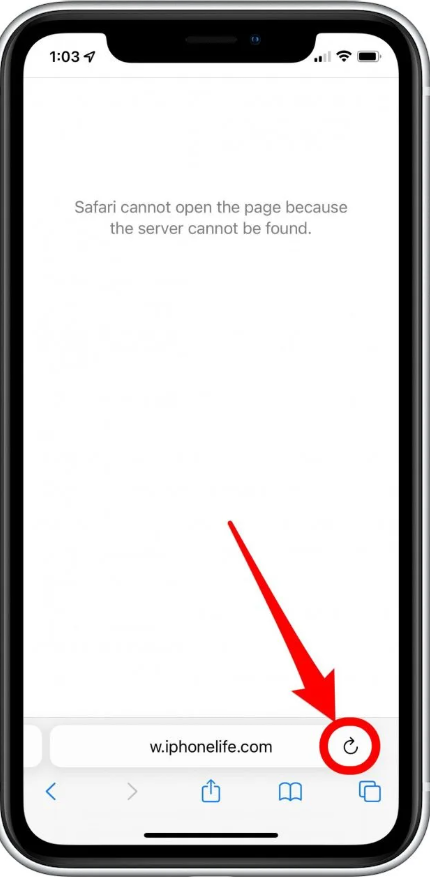
It will not necessarily improve the performance of every application.
A cache is designed to reduce repeated downloading and processing. Removing it means the browser must rebuild stored resources, which can temporarily increase loading times.
If your entire iPhone feels slow, check available storage under Settings > General > iPhone Storage.
Apple recommends maintaining at least 1 GB of available storage to help avoid slowdowns.
Also consider restarting the device, updating iOS and checking whether the problem affects a particular application or the entire system.
Repeatedly deleting browser cache is unnecessary when everything is functioning normally.
Common Questions About iPhone Cache
Does clearing cache delete photos?
Clearing Safari or Chrome’s website cache does not delete photos stored in your Photos library.
Deleting an entire application is different and may remove locally stored files associated with that app.
How often should I clear cache?
There is no fixed schedule. Clear browser cache when troubleshooting loading problems, removing unwanted website data or addressing a specific storage issue.
Can I clear all iPhone cache at once?
No universal iOS control removes every application’s cache simultaneously. Use browser settings and individual application storage controls instead.
Which Cache Should You Clear First?
Start with the application experiencing the problem.
If a website displays old information, clear that browser’s cache. If one application consumes excessive storage, inspect its Documents & Data and look for built-in storage controls.
When the entire iPhone is running low on space, review large downloads and unused applications before deleting valuable data.
The safest approach is targeted cleanup: remove the information causing the problem and keep browsing history, passwords, app documents and offline files unless deleting them is genuinely necessary.